> ## Documentation Index
> Fetch the complete documentation index at: https://docs.bikeyard.com.au/llms.txt
> Use this file to discover all available pages before exploring further.
# Shop Onboarding Guide
> Complete guide to setting up your Bike Yard account, creating your shop profile, and adding your first bike listings.
**Welcome to Bike Yard** — Australia's Lead Generation Platform for Bike Shops
*Version 1.2 | December 2025*
## What is Bike Yard?
Bike Yard is a platform that connects bike shops with buyers actively searching for bikes. Unlike marketplace sites, Bike Yard is a **lead generation platform** — buyers browse your listings and contact you directly. No transaction fees, no commissions, just quality leads.
### Key Benefits for Your Shop
| Traditional Listing | With Bike Yard |
| -------------------- | ---------------------------- |
| 15+ minutes per bike | **Under 1 minute per bike** |
| Manual spec entry | Auto-populated from 99spokes |
| No analytics | Track views & enquiries |
| Basic presentation | Professional listings |
**We're Building This For You**
Bike Yard is in active development and exists to help local bike shops sell more bikes. We welcome your suggestions for features and improvements — the Bike Yard team wants to make things easier for you as a bike shop owner. Email us anytime at **[support@bikeyard.com.au](mailto:support@bikeyard.com.au)**
***
## Getting Started
### Step 1: Sign Up for a Subscription
Visit **bikeyard.com.au/join** to choose your plan:
**\$80/month**
* Up to 10 bike listings
* Bike specs data via 99 Spokes
* Direct customer enquiries
* Shop profile page
* Performance analytics
* Email support
**\$120/month**
* **Up to 200 bike listings**
* Bike specs data via 99 Spokes
* Direct customer enquiries
* Shop profile page
* Advanced analytics
* Priority support
After payment, you'll receive a welcome email with your login credentials.
***
### Step 2: Set Up Your Shop Profile
Your shop profile is what buyers see when they click on any of your listings. A complete profile builds trust and drives more enquiries.
**Required Information:**
* Shop name
* Contact phone number
* Email address
* Street address, suburb, state, postcode
**Recommended:**
* Shop website URL
* Opening hours
* Shop description/bio
* Shop logo
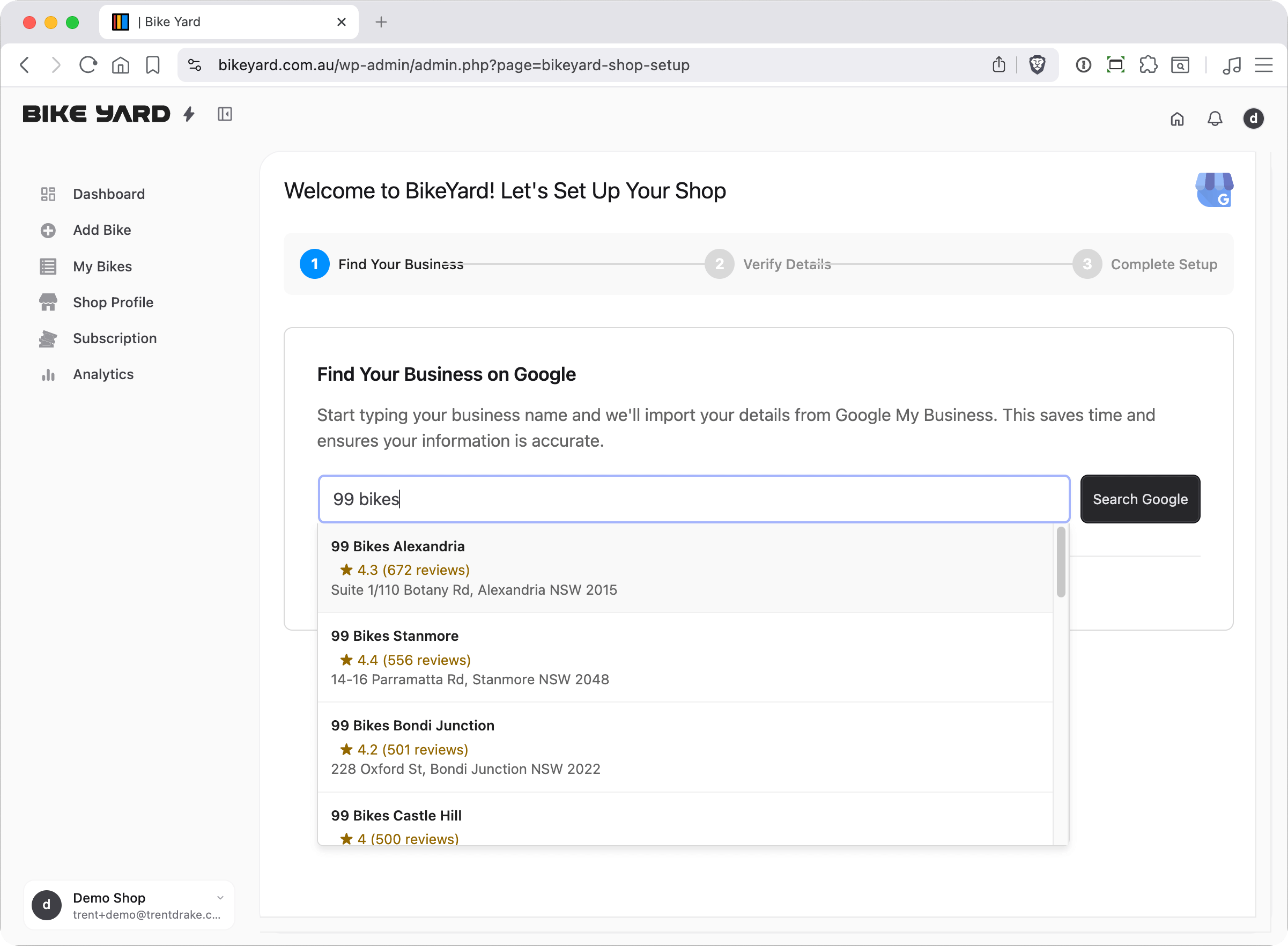
Use the "Import from Google My Business" feature to auto-fill most of your shop details in seconds!
#### How to Import from Google My Business
Navigate to your Shop Profile page in the dashboard
Look for the "Import from Google My Business" section
Type your shop name and click "Search"
Click on your shop from the search results
Your details (including Google rating!) will be auto-filled
 ***
### Step 3: Add Your First Bike
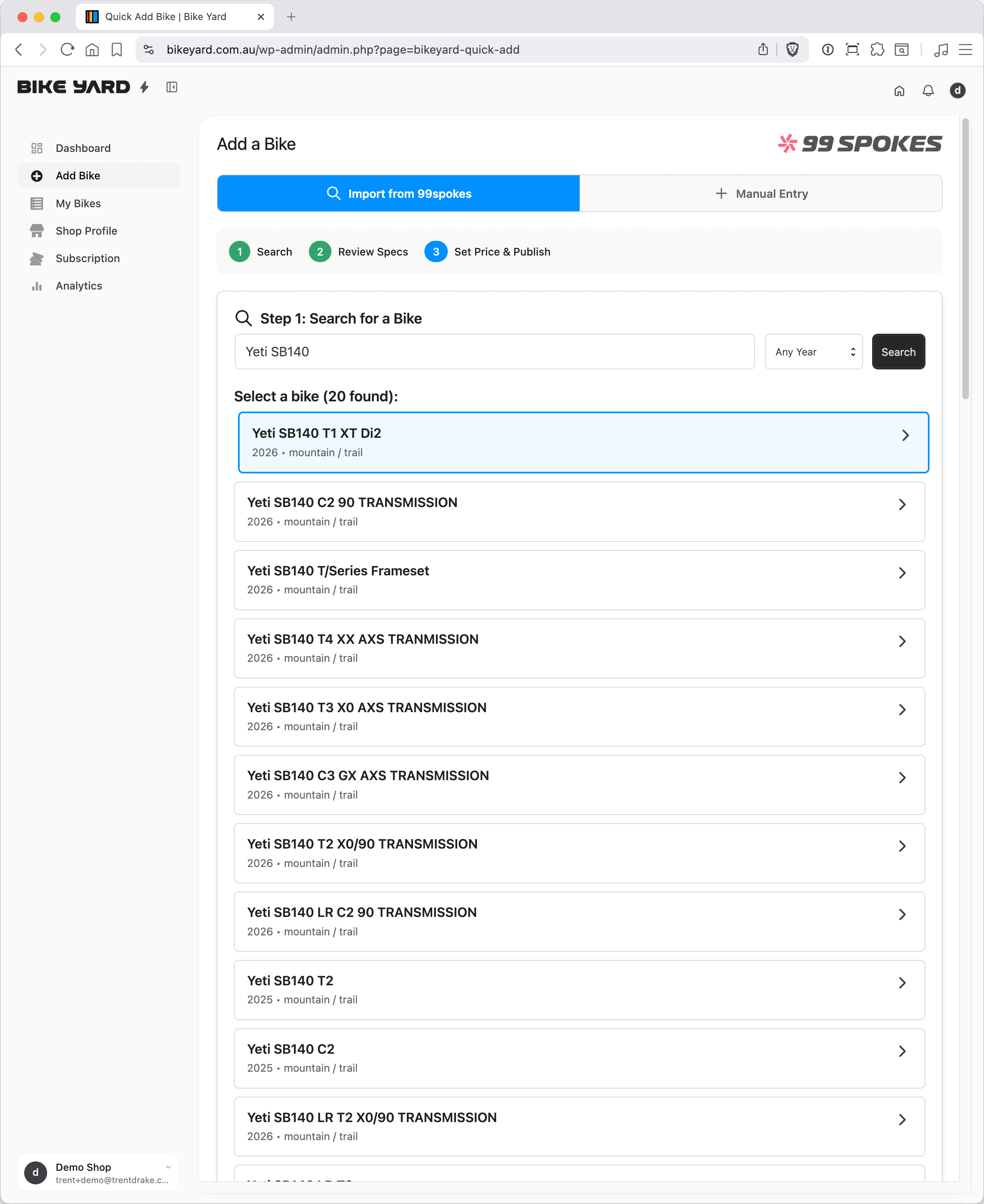
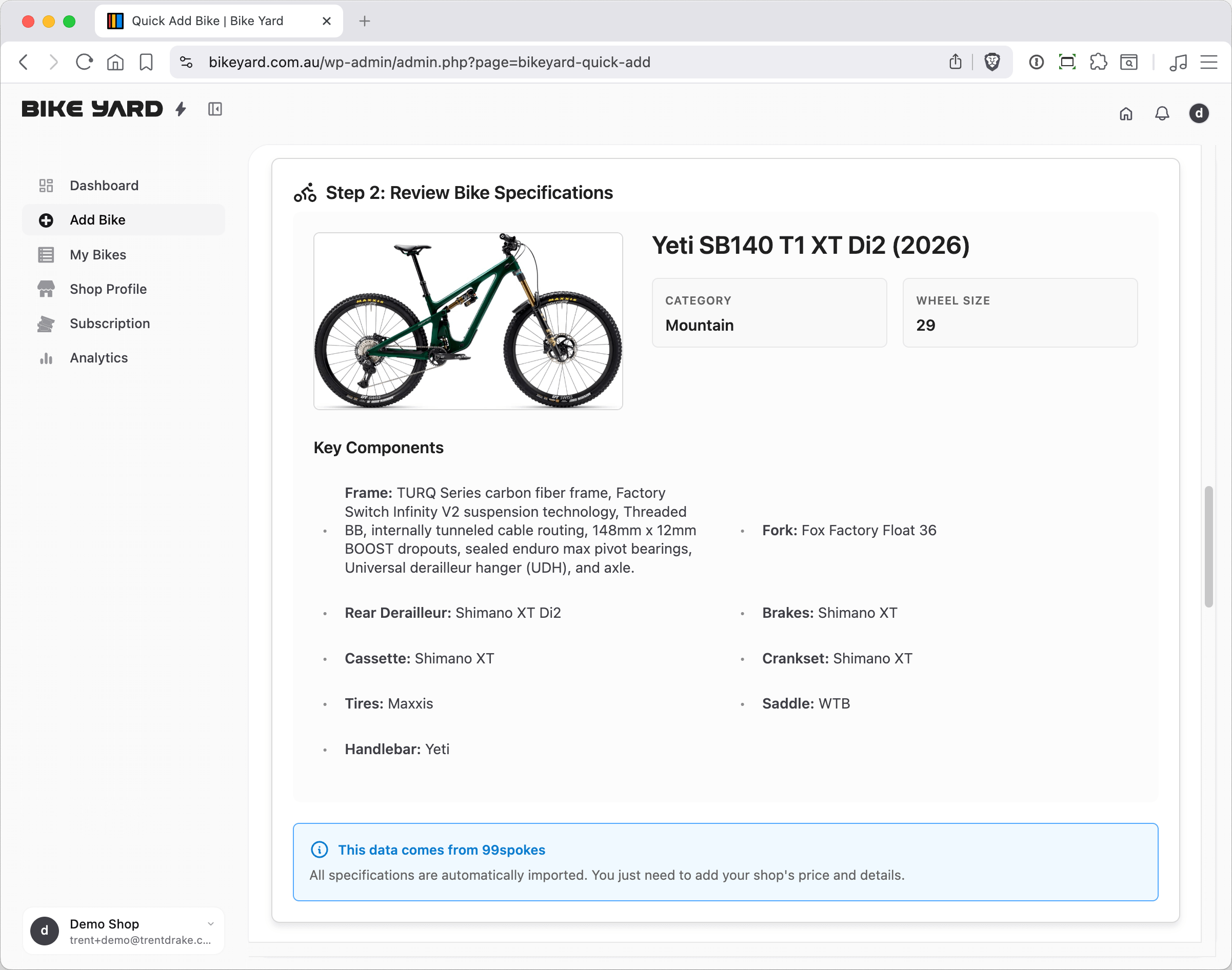
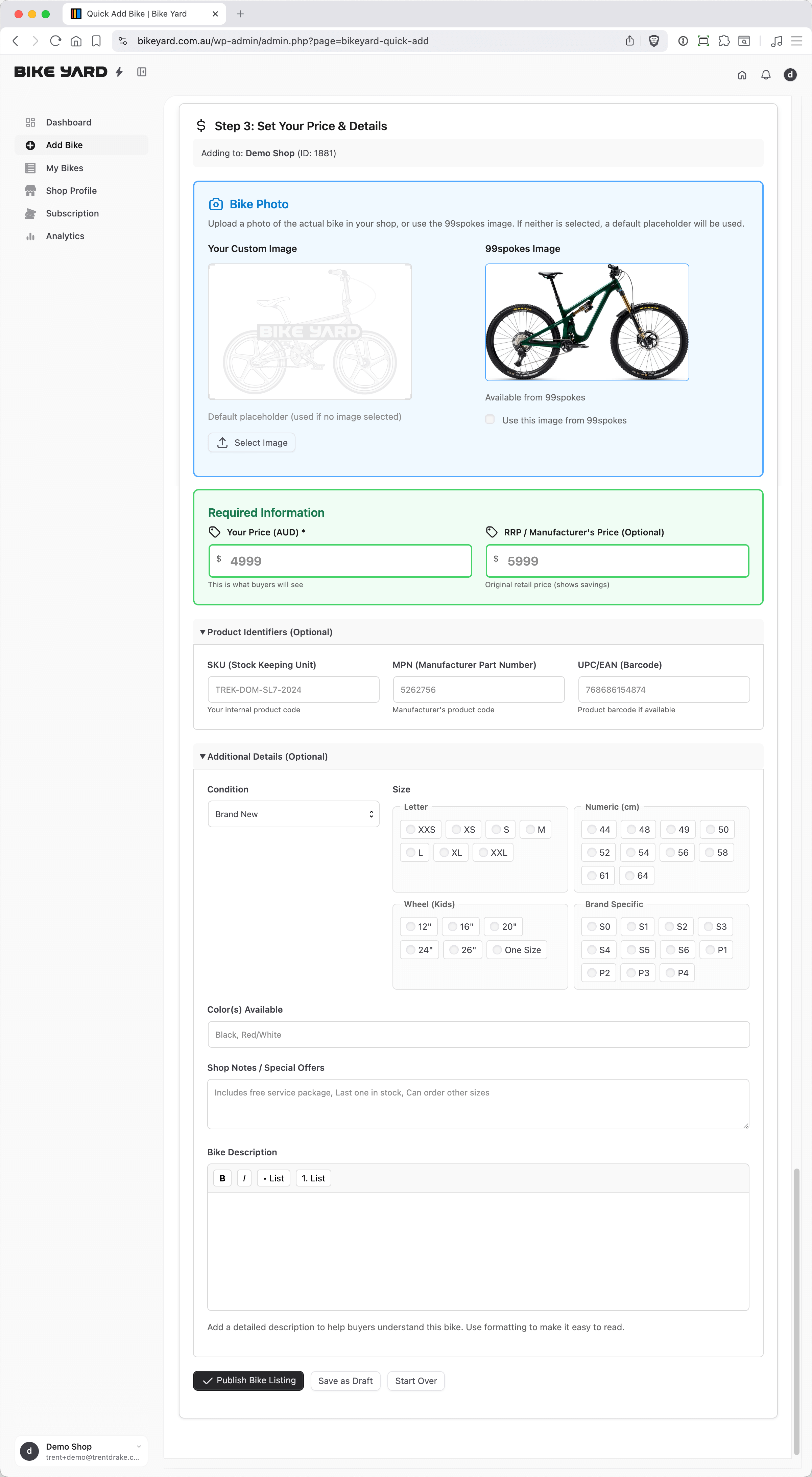
This is where Bike Yard shines. Adding a bike takes **1 minute or less** using our 99spokes integration.
#### Quick Add Process
Type the bike brand and model (e.g., "Specialized Tarmac" or "Giant Defy")
Click on the correct bike from the search results
Check the auto-populated specifications
Enter YOUR selling price, size, and colour
Click "Publish Bike Listing"
**That's it!** Your bike is now live and searchable by buyers across Australia.
***
### Step 3: Add Your First Bike
This is where Bike Yard shines. Adding a bike takes **1 minute or less** using our 99spokes integration.
#### Quick Add Process
Type the bike brand and model (e.g., "Specialized Tarmac" or "Giant Defy")
Click on the correct bike from the search results
Check the auto-populated specifications
Enter YOUR selling price, size, and colour
Click "Publish Bike Listing"
**That's it!** Your bike is now live and searchable by buyers across Australia.
 #### One Listing Per Bike
Each physical bike you have in stock needs its own listing on Bike Yard. This means:
* **Multiple units of the same model** — each one gets its own listing
* **Same model in different sizes** — each size gets its own listing
* **Same model in different colours** — each colour gets its own listing
This approach ensures buyers see exactly what's available and can find the specific bike they're looking for.
**Use the Duplicate feature!** To save time when listing multiple units of the same bike, use the **Duplicate** button in your My Bikes table. This copies all the bike's specs and creates a new draft listing — just update the size, colour, or price and publish. Much faster than starting from scratch!
***
## Managing Your Listings
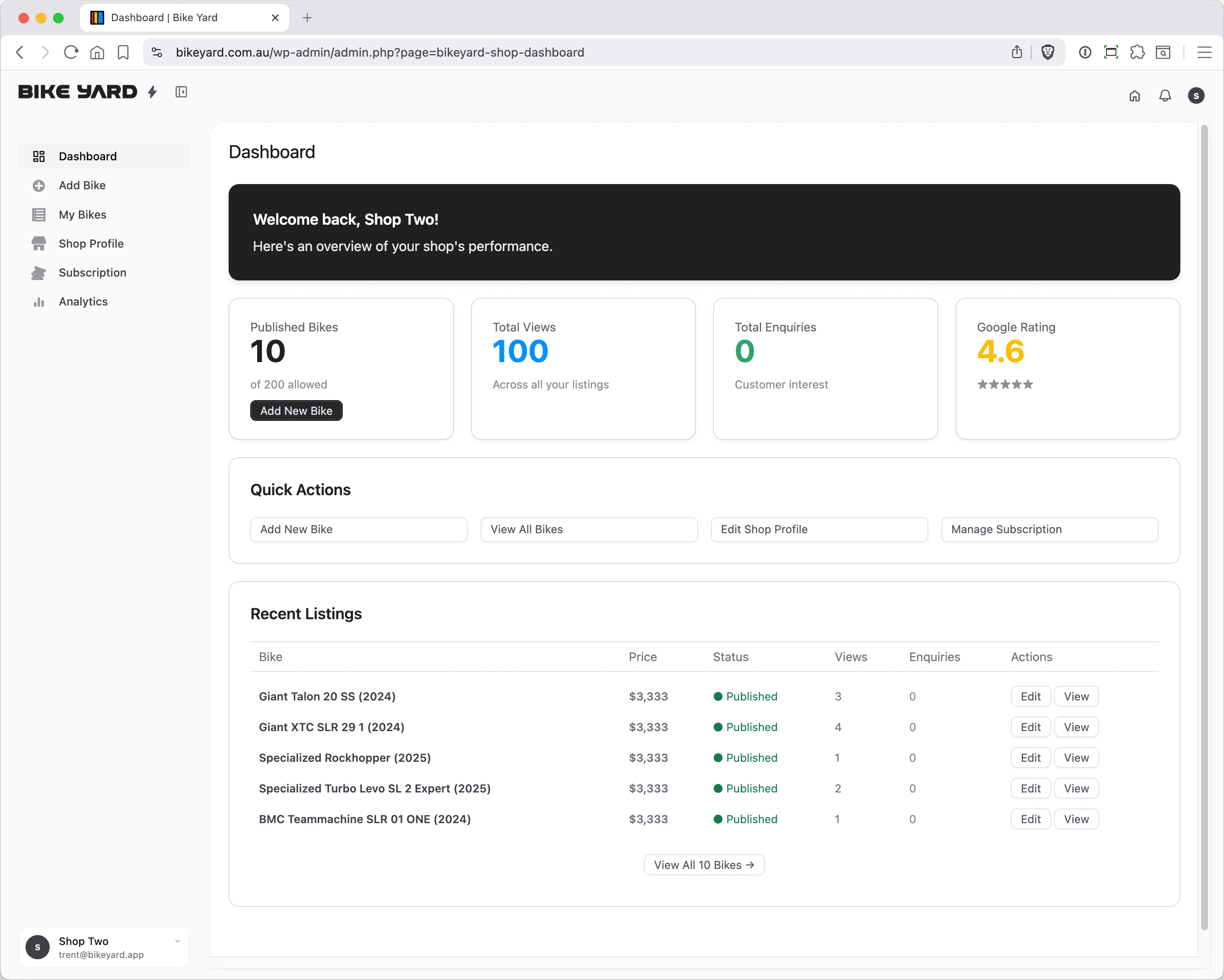
### Your Dashboard
Your dashboard gives you a quick overview of:
* Total active listings
* Recent views across all bikes
* Recent enquiries
* Quick links to add/manage bikes
#### One Listing Per Bike
Each physical bike you have in stock needs its own listing on Bike Yard. This means:
* **Multiple units of the same model** — each one gets its own listing
* **Same model in different sizes** — each size gets its own listing
* **Same model in different colours** — each colour gets its own listing
This approach ensures buyers see exactly what's available and can find the specific bike they're looking for.
**Use the Duplicate feature!** To save time when listing multiple units of the same bike, use the **Duplicate** button in your My Bikes table. This copies all the bike's specs and creates a new draft listing — just update the size, colour, or price and publish. Much faster than starting from scratch!
***
## Managing Your Listings
### Your Dashboard
Your dashboard gives you a quick overview of:
* Total active listings
* Recent views across all bikes
* Recent enquiries
* Quick links to add/manage bikes
 ### My Bikes
View all your listings in one place:
* **Status** — Published, Draft, or Sold
* **Views** — How many times each bike has been viewed
* **Enquiries** — Number of contact requests received
* **Actions** — Edit, duplicate, or mark as sold
### Duplicating a Listing
Got multiple units of the same bike? Here's how to quickly duplicate a listing:
Navigate to your My Bikes page
Locate the listing you want to copy
Click the **Duplicate** button
A new draft listing is created with "(Copy)" in the title. Update the size, colour, price, or add photos
Click **Publish** when ready
The duplicate feature copies all bike specs but resets analytics to zero and doesn't copy any boost status. Your featured image is shared between listings (not duplicated) to save storage.
### Editing a Listing
Need to update a price or mark a bike as sold?
1. Go to **My Bikes**
2. Find the listing you want to edit
3. Click **Edit**
4. Make your changes
5. Click **Update**
When a bike sells, change the status to "Sold" — this removes it from search results while keeping your history intact.
***
## Listing Best Practices
* Create one listing per bike
* List bikes you have in stock
* Keep prices current
* Use the duplicate feature for multiple units
* Use accurate descriptions
* Respond quickly to enquiries
* List bikes you can't supply
* Use as general advertising
* Leave sold bikes as "In Stock"
* Ignore enquiries
* Put multiple sizes in one listing
Listing bikes that aren't genuinely available damages trust with buyers and Bike Yard's reputation. Repeated violations may result in account suspension.
***
## Understanding Your Analytics
### Views
Every time a buyer views your bike listing, it counts as a view. High views but low enquiries? Consider:
* Is your price competitive?
* Is your description complete?
* Are your shop details filled in?
### Enquiries
When a buyer submits an enquiry form or clicks to call/email, it's tracked as an enquiry. This is your key metric — enquiries are leads that can convert to sales.
### Conversion Tips
* Respond to enquiries within 2 hours if possible
* Include all relevant information in your listings
* Keep your shop phone answered during business hours
* Have your team aware that Bike Yard leads are coming in
***
## Bike Boost (Optional)
Want extra visibility for a specific bike? Use **Bike Boost**:
* **\$20** for 14 days of featured placement
* Bike appears in "Featured Bikes" section
* Higher visibility in search results
* Available on any listing
Perfect for clearing out ex-demo stock, promoting sale items, or highlighting new arrivals.
***
## Getting Help
### Support Resources
* **Email:** [support@bikeyard.com.au](mailto:support@bikeyard.com.au)
* **Help Centre:** bikeyard.com.au/help
* **FAQs:** bikeyard.com.au/faq
### Common Questions
Currently, bikes are added individually via 99spokes search. Bulk import features are planned for future release.
Your listings will be hidden from search results but not deleted. Renewing your subscription will restore them.
Currently, one login per shop. Multi-user access is on our roadmap.
Contact us at [support@bikeyard.com.au](mailto:support@bikeyard.com.au) — we can often get it added. Or choose the manual entry option above the 99 Spokes search box.
Each listing represents one physical bike available for sale. This ensures buyers know exactly what's in stock and can filter by the specific size/colour they need.
***
## Quick Reference
### Key URLs
| Page | URL |
| ------------ | ---------------------------------------- |
| Dashboard | `bikeyard.com.au/dashboard` |
| Add Bike | `bikeyard.com.au/dashboard/add-bike` |
| My Bikes | `bikeyard.com.au/dashboard/my-bikes` |
| Shop Profile | `bikeyard.com.au/dashboard/shop-profile` |
| Subscription | `bikeyard.com.au/dashboard/subscription` |
### Support Contact
**Email:** [support@bikeyard.com.au](mailto:support@bikeyard.com.au)
**Response time:** Within 24 hours (business days)
***
## Welcome to Bike Yard!
We're excited to have you on board. Bike Yard was built by people who understand the bike industry, and we're committed to making it the best lead generation tool for Australian bike shops.
If you have feedback, feature requests, or just want to say g'day, we'd love to hear from you.
**Happy listing!**
*The Bike Yard Team*
### My Bikes
View all your listings in one place:
* **Status** — Published, Draft, or Sold
* **Views** — How many times each bike has been viewed
* **Enquiries** — Number of contact requests received
* **Actions** — Edit, duplicate, or mark as sold
### Duplicating a Listing
Got multiple units of the same bike? Here's how to quickly duplicate a listing:
Navigate to your My Bikes page
Locate the listing you want to copy
Click the **Duplicate** button
A new draft listing is created with "(Copy)" in the title. Update the size, colour, price, or add photos
Click **Publish** when ready
The duplicate feature copies all bike specs but resets analytics to zero and doesn't copy any boost status. Your featured image is shared between listings (not duplicated) to save storage.
### Editing a Listing
Need to update a price or mark a bike as sold?
1. Go to **My Bikes**
2. Find the listing you want to edit
3. Click **Edit**
4. Make your changes
5. Click **Update**
When a bike sells, change the status to "Sold" — this removes it from search results while keeping your history intact.
***
## Listing Best Practices
* Create one listing per bike
* List bikes you have in stock
* Keep prices current
* Use the duplicate feature for multiple units
* Use accurate descriptions
* Respond quickly to enquiries
* List bikes you can't supply
* Use as general advertising
* Leave sold bikes as "In Stock"
* Ignore enquiries
* Put multiple sizes in one listing
Listing bikes that aren't genuinely available damages trust with buyers and Bike Yard's reputation. Repeated violations may result in account suspension.
***
## Understanding Your Analytics
### Views
Every time a buyer views your bike listing, it counts as a view. High views but low enquiries? Consider:
* Is your price competitive?
* Is your description complete?
* Are your shop details filled in?
### Enquiries
When a buyer submits an enquiry form or clicks to call/email, it's tracked as an enquiry. This is your key metric — enquiries are leads that can convert to sales.
### Conversion Tips
* Respond to enquiries within 2 hours if possible
* Include all relevant information in your listings
* Keep your shop phone answered during business hours
* Have your team aware that Bike Yard leads are coming in
***
## Bike Boost (Optional)
Want extra visibility for a specific bike? Use **Bike Boost**:
* **\$20** for 14 days of featured placement
* Bike appears in "Featured Bikes" section
* Higher visibility in search results
* Available on any listing
Perfect for clearing out ex-demo stock, promoting sale items, or highlighting new arrivals.
***
## Getting Help
### Support Resources
* **Email:** [support@bikeyard.com.au](mailto:support@bikeyard.com.au)
* **Help Centre:** bikeyard.com.au/help
* **FAQs:** bikeyard.com.au/faq
### Common Questions
Currently, bikes are added individually via 99spokes search. Bulk import features are planned for future release.
Your listings will be hidden from search results but not deleted. Renewing your subscription will restore them.
Currently, one login per shop. Multi-user access is on our roadmap.
Contact us at [support@bikeyard.com.au](mailto:support@bikeyard.com.au) — we can often get it added. Or choose the manual entry option above the 99 Spokes search box.
Each listing represents one physical bike available for sale. This ensures buyers know exactly what's in stock and can filter by the specific size/colour they need.
***
## Quick Reference
### Key URLs
| Page | URL |
| ------------ | ---------------------------------------- |
| Dashboard | `bikeyard.com.au/dashboard` |
| Add Bike | `bikeyard.com.au/dashboard/add-bike` |
| My Bikes | `bikeyard.com.au/dashboard/my-bikes` |
| Shop Profile | `bikeyard.com.au/dashboard/shop-profile` |
| Subscription | `bikeyard.com.au/dashboard/subscription` |
### Support Contact
**Email:** [support@bikeyard.com.au](mailto:support@bikeyard.com.au)
**Response time:** Within 24 hours (business days)
***
## Welcome to Bike Yard!
We're excited to have you on board. Bike Yard was built by people who understand the bike industry, and we're committed to making it the best lead generation tool for Australian bike shops.
If you have feedback, feature requests, or just want to say g'day, we'd love to hear from you.
**Happy listing!**
*The Bike Yard Team*